Documentation
Learn how to use Isolvio to protect your databases with automated backups.
How it works
Get started with Isolvio in just 4 steps.
Create an account
Sign up for Isolvio in seconds. No credit card required for the first month.
Connect your storage
Link your S3-compatible storage account (AWS S3, Backblaze, DigitalOcean, etc.)
Create a backup job
Configure a new backup job for your database. Choose your backup schedule and retention policy.
Automated backups
Your database backups now run automatically on your defined schedule, stored securely in your cloud.
Backup Configuration
Configure your database backups with flexible scheduling and database options.
Supported Databases
We currently support:
- ✓ MySQL 5.7+
PostgreSQL, SQLite, and SQL Server support coming soon.
Backup Scheduling
Choose from flexible scheduling options:
- • Hourly
- • Daily (with specific time)
- • Weekly (on specific day)
- • Monthly (on specific date)
Key Configuration Options
Database Host
IP address or hostname of your database server. Must be accessible from Isolvio's servers.
Database Port
Default is 3306 for MySQL. Adjust if your database runs on a custom port (e.g., 3307, 3308).
Database Credentials
Username and password for database access. Credentials are stored encrypted in our system and never exposed in backups or logs.
Retention Policy
Number of backups to keep per job. Older backups are automatically deleted from storage. Default is 7 backups.
Storage Path
Custom folder path in your storage location where backups will be saved. Useful for organizing multiple databases in one bucket.
SSL/TLS Connection
Optional SSL/TLS encryption for the database connection. Recommended for remote databases and sensitive environments.
Test Your Connection
Before saving a backup job, use the "Test Connection" feature to verify your database is accessible and the backup runs successfully.
Backup Process
Isolvio uses a privacy-first approach to backups. Your data never stays on our servers longer than necessary.
How we protect your data
- • Backups are created on a schedule you define
- • Data is transferred directly to your storage location
- • Immediately deleted from our servers after transfer
- • You maintain complete control and ownership of your backups
Storage Locations
Connect your backups to any S3-compatible storage provider. We support all major cloud storage platforms.
Supported providers
- ✓ AWS S3
- ✓ DigitalOcean Spaces
- ✓ Backblaze B2
- ✓ MinIO
- ✓ Wasabi
- ✓ Any S3-compatible storage
Advanced Storage Features
Customize your storage setup with advanced options for security and organization.
Storage Prefixes & Folder Structure
Organize your backups with custom prefixes in your S3 bucket:
- • Create subdirectories within your bucket (e.g.,
backups/production) - • Multiple storage locations with different prefixes for different environments
- • Helps organize backups from multiple databases in one bucket
Server-Side Encryption
Enhance security with S3 server-side encryption:
AES256
AWS S3 managed encryption. Simple and secure for most use cases.
AWS KMS
Key Management Service for advanced encryption key management and audit trails.
None
No server-side encryption (not recommended for sensitive data).
Path-Style URLs
For S3-compatible storage providers that require path-style URLs:
- • Enable for MinIO, Wasabi, or other non-AWS S3 providers
- • Uses
https://endpoint/bucket/keyformat - • Virtual-hosted-style URLs use
https://bucket.endpoint/key
Custom Endpoints
Connect to any S3-compatible storage with custom endpoints:
- ✓ AWS S3:
s3.us-east-1.amazonaws.com - ✓ DigitalOcean Spaces:
nyc3.digitaloceanspaces.com - ✓ Backblaze B2:
s3.us-west-000.backblazeb2.com - ✓ Custom MinIO: Any accessible endpoint
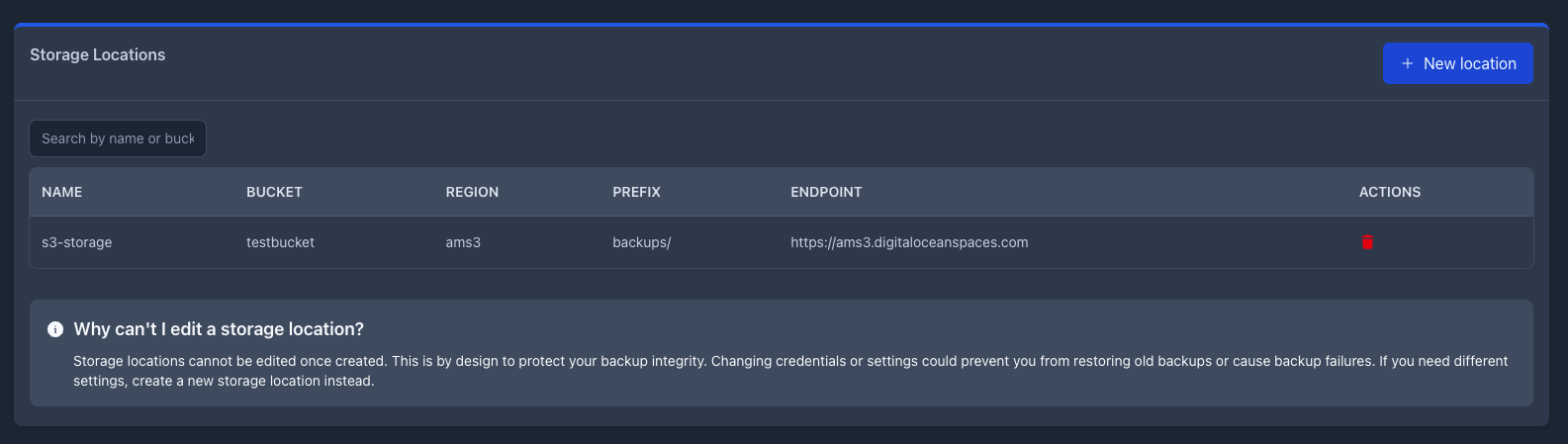
Storage Location is Read-Only
Once you create a storage location, the settings cannot be edited. This protects your backup integrity and prevents accidental data loss. If you need different settings, create a new storage location instead.
Dashboard & Monitoring
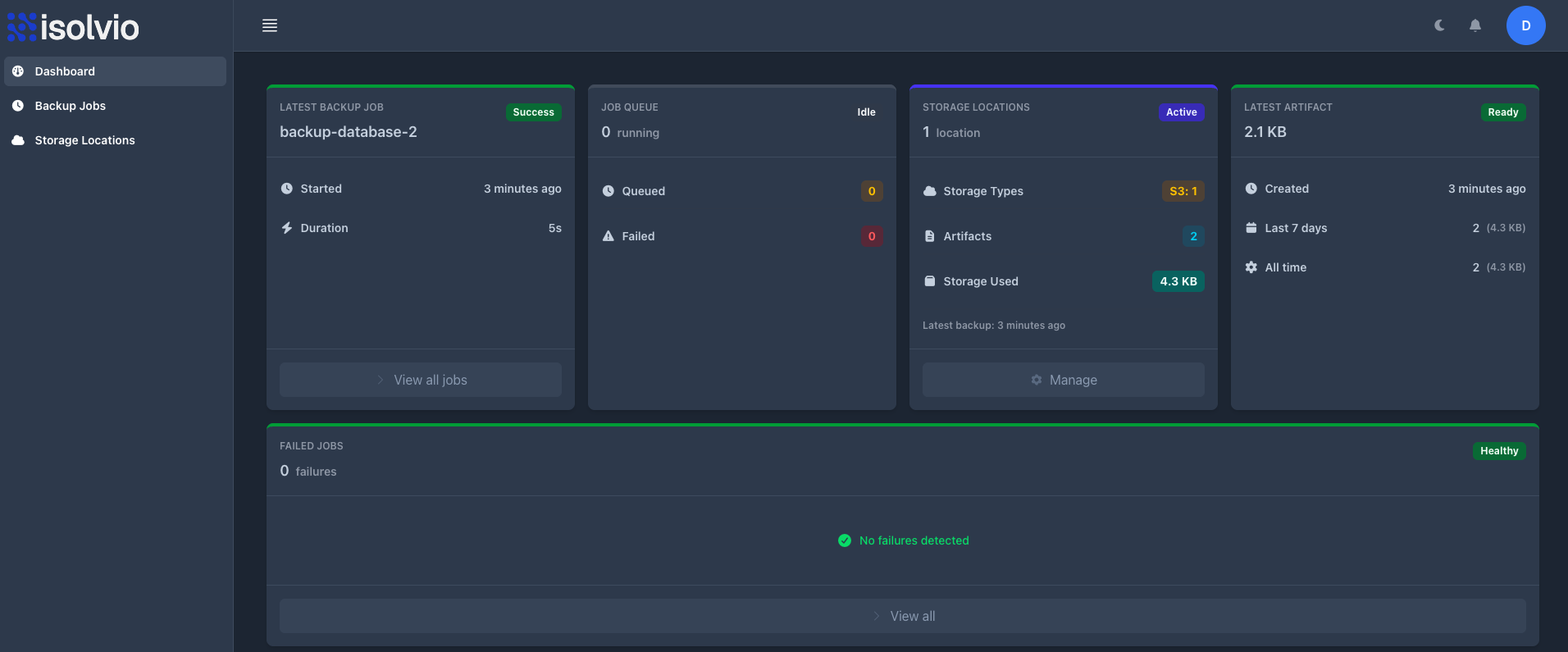
Monitor your backups in real-time with comprehensive dashboards and metrics.
Backup Health
Get an overview of your backup status:
- • Total active jobs
- • Successful vs failed backups
- • Last backup timestamp
- • Next scheduled backup
Storage Usage
Track your storage consumption:
- • Total data stored
- • Per-job breakdown
- • Storage location usage
- • Monthly trends
Performance Metrics
Monitor backup performance:
- • Average backup duration
- • Data transfer speed
- • Success rate trends
- • Error patterns
Queue & Alerts
Real-time status and notifications:
- • Backup queue status
- • Failed backup alerts
- • In-app notifications
- • Email notifications
Upcoming Backups
View your scheduled backups for the next 7 days and stay informed about when your data will be backed up.
Backup Management
Manage your backups effectively with download, viewing, and retention features.
Backup Runs & History
View detailed information about each backup:
- • Start and end time of each backup
- • Backup size and duration
- • Success or failure status with error messages
- • Data transfer speed
Download & Restore
Access your backups anytime:
- • Download individual backup files directly
- • Access backups from your cloud storage anytime
Retention & Cleanup
Automatic backup management:
- • Set retention count per job (default: 7 backups)
- • Oldest backups are automatically deleted from storage
- • Reduces storage costs by keeping only necessary backups
- • Prevent accidental deletion with manual backup pinning (coming soon)
Job Management
Control your backup jobs:
- • Enable/disable jobs to pause backups temporarily
- • Update job configuration and schedule
- • Delete jobs and their backup history
Security & 2FA
Protect your Isolvio account with two-factor authentication and manage your security settings.
Two-Factor Authentication
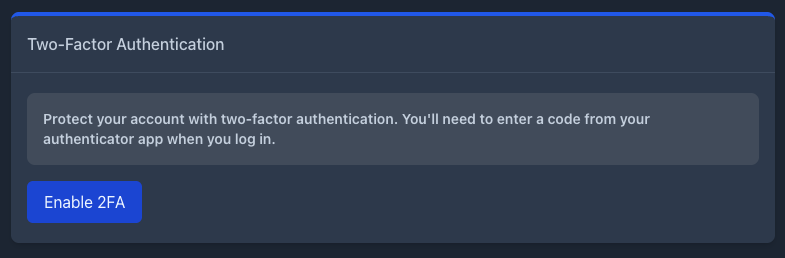
Enable 2FA to add an extra layer of security to your account.
- ✓ Time-based one-time passwords (TOTP)
- ✓ Backup codes for account recovery
- ✓ Easy enable/disable from settings
Additional Security Features
- • All connections encrypted with TLS 1.2+
- • API keys securely hashed in database
- • Regular security audits and updates
- • Session management with secure cookies
Account & Billing
Manage your balance, top up credits, and view your invoices.
Balance & Credits
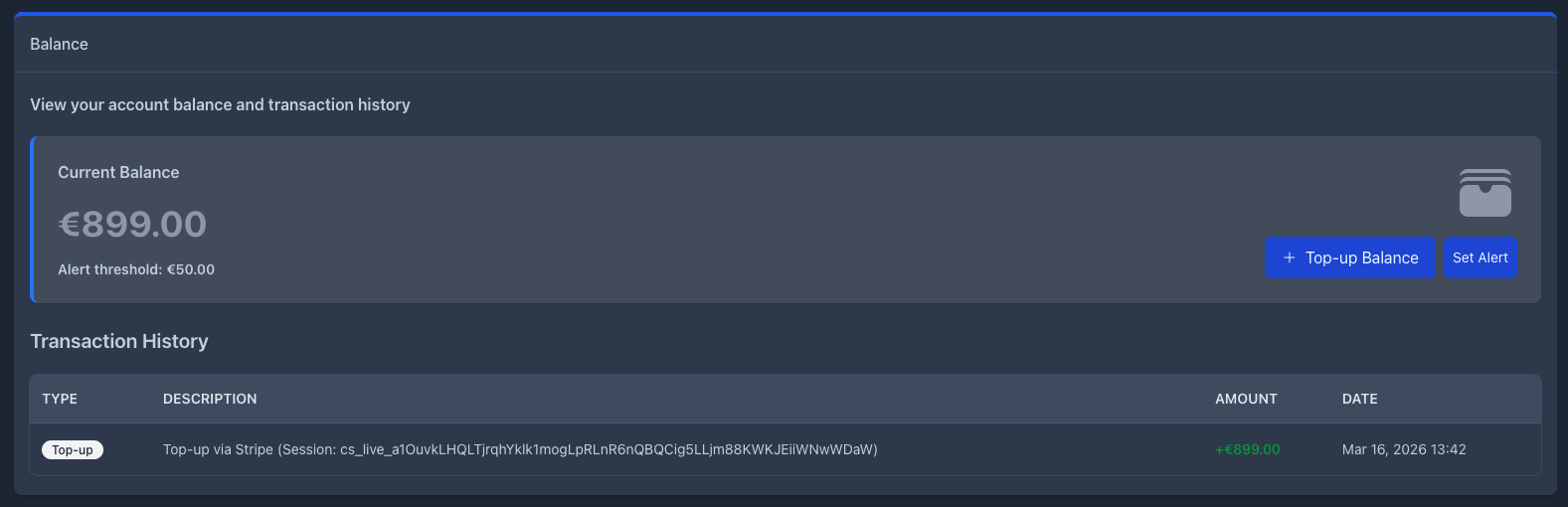
Your account balance tracks your prepaid credits for backups. All payments are processed securely through Stripe.
- ✓ View current balance anytime
- ✓ Top up credits with one click
- ✓ Automatic billing when balance runs low
- ✓ Usage tracking and invoicing
Payment methods: iDEAL, WERO, Bancontact, and all major credit cards
Pricing & Invoices
Pay only for what you use. First monthly backup is free.
- • Transparent pricing based on data transferred
- • Download invoices for accounting
- • No hidden fees or surprise charges
- • Flexible billing options available
Troubleshooting & FAQ
Find answers to common questions and solutions to common issues.
Q: My database connection is failing. What should I do?
A: First, verify that:
- The database host/IP is correct and accessible from Isolvio's servers (either publicly accessible or whitelist our IP range)
- The database port is accessible from our servers (no firewall blocking connections from Isolvio)
- Your username and password are correct
- Your database user has the necessary permissions (SELECT, LOCK TABLES, SHOW VIEW for MySQL)
- Try the "Test Connection" feature in the backup job form for detailed error messages
Q: Why did my backup fail?
A: Common causes include:
- Database connection timeout or database offline
- Insufficient storage space in S3 bucket
- Invalid S3 credentials or permission issues
- Database too large or experiencing high load
- Network connectivity issues
Check the backup run details for specific error messages.
Q: Can I store backups from multiple databases in one S3 bucket?
A: Yes! Use different storage prefixes for each backup job or location. For example:
backups/production/app-dbbackups/production/analytics-dbbackups/staging
Q: How long are backups stored in your system?
A: Backups are never stored in Isolvio. They are transferred directly to your S3-compatible storage and immediately deleted from our servers after transfer completes. You have full control of your data lifecycle.
Q: What happens if my balance runs out?
A: When your balance is low, you'll receive notifications. You can top up your balance anytime. If your balance reaches zero, backups will pause until you top up. We recommend enabling automatic top-up or keeping a buffer.
Q: How do I enable Two-Factor Authentication (2FA)?
A: Go to Account Settings > Two-Factor Authentication. Scan the QR code with an authenticator app (Google Authenticator, Authy, etc.) and enter the code to enable 2FA. Save your backup codes in a safe place.
Q: Can I edit a storage location after creating it?
A: No. Storage locations are read-only after creation to protect your backup integrity. If you need to change settings, create a new storage location. You can then create new jobs using the new location or migrate existing jobs.
Q: How can I restore a backup?
A: You can download backup files from the Backups section and restore them manually using standard database tools (e.g., mysql command line, phpMyAdmin, or your preferred database management tool).
Q: Is my data encrypted?
A: Yes. All data is encrypted in transit using TLS 1.2+. At rest, encryption depends on your S3 provider and configuration. You can enable server-side encryption (AES256 or AWS KMS) for additional security.
Q: What happens when I cancel my account?
A: Your scheduled backups stop running immediately. Your backups remain in your storage location and under your control. You can download them anytime. Account data is deleted after 90 days for legal compliance.
Ready to protect your databases?
Start using Isolvio today. Your first monthly backup is completely free.
Get Started Now